
Turning one photo into a short video no longer requires a timeline, keyframes, or video-editing experience. A good AI image-to-video tool can infer depth, lighting, and plausible movement from a still frame, then render a short clip from a simple instruction.
This guide shows you how to turn a photo into a video with AI for free, what to write in the prompt, and how to avoid the failures that waste free generations. You can follow the steps with our free image-to-video tool. Google sign-in is currently required. Eligible new accounts receive 12 one-time credits, subject to anti-abuse checks and availability. The generator shows your balance and the cost for the selected model and settings. No credit card is required. The signup credits do not refresh or expire.
Quick answer: upload a clear JPG, PNG, or WebP image, describe one main movement and one camera action, generate the clip, review it, and download the MP4.
The 30-second version
- Open the free image-to-video generator.
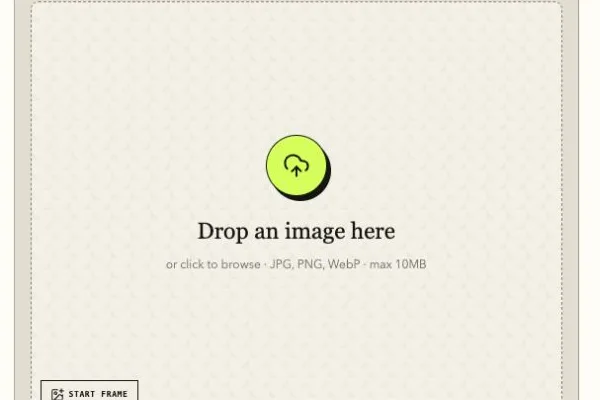
- Upload a JPG, PNG, or WebP photo up to 10 MB.
- Write one motion instruction, or leave the prompt empty for an AI-enhanced default.
- Complete the human check and select Generate video.
- Preview the five-second result and download the MP4.
No editing software or credit card is required. If you are still choosing a service, our free AI image-to-video tools comparison explains which options require an account and how their free allowances differ.
Comparing a specific service? Our Higgsfield alternative guide breaks down subscription prices, credit costs and workflow differences. If you want to edit an existing performance rather than animate a still photo, open the Hotel Lobby AI video editor, which starts with a replaceable sample clip and reference images.
What you need before you start
You only need three things:
- One clear source image. Use a JPG, PNG, or WebP file no larger than 10 MB.
- A motion idea. Decide what should move and how the camera should behave.
- One or two minutes to render. AI video generation runs on remote GPUs, so it is not instant.
You do not need to crop the image perfectly before uploading. However, the source photo strongly influences the final video. A sharp, well-lit image with a clear subject usually gives the model fewer ambiguous details to invent.
Step 1: Choose a photo that can move naturally
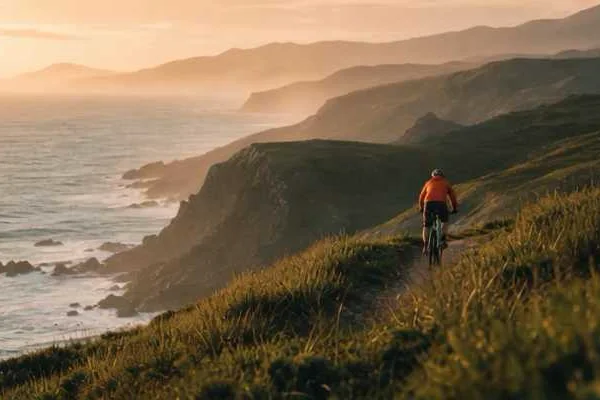
The easiest photos to animate already suggest a direction of motion. A cyclist facing down a road, a person looking toward an open space, clouds over a landscape, or a product surrounded by light and shadow all give the model useful visual clues.
Good starting images usually have:
- one obvious subject;
- enough empty space around the subject;
- clear separation between foreground and background;
- natural lighting and visible depth;
- no tiny text that must remain perfectly readable.
Be cautious with crowded group photos, overlapping hands, reflections, or low-resolution screenshots. The model must estimate hidden geometry between frames. The more uncertain the source, the more likely faces, fingers, text, or edges will drift.
Images that are easier—and harder—to animate
| Source image | Why it tends to work—or fail |
|---|---|
| Portrait with a clean background | Clear facial structure and room for subtle movement |
| Landscape with visible depth | Foreground, middle ground, and sky support camera motion |
| Product photo with clean edges | Shape and reflections are easier to preserve |
| Busy collage or crowded group | Too many competing subjects and overlapping details |
| Text-heavy graphic | Letters can shimmer or change between frames |
| Dark, blurred, or very low-resolution shot | The model has less stable visual information to preserve |
Step 2: Upload the image
Open the AI image-to-video generator, then drag the photo into the upload area or choose it from your device. The preview lets you confirm that you selected the correct file before using a generation.
Uploaded images are sent through our server to Kie.ai for processing. Do not upload confidential documents, private identification, or an image you do not have permission to use. For the complete handling details, read our privacy policy.
Step 3: Write a focused motion prompt
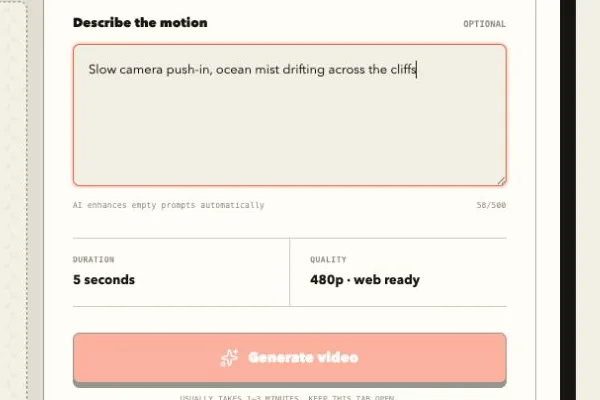
The motion prompt is optional, but it gives you more control. A useful prompt answers three questions:
- What moves?
- How does it move?
- What does the camera do?
A reliable structure is:
Subject action + environmental motion + camera movement + mood
For example:
The cyclist moves slowly along the coastal path, grass sways in the breeze, the camera gently tracks forward, natural cinematic light.
This works better than a long list of unrelated requests. The model has only a few seconds to express the scene, so one coherent action is usually stronger than five competing actions.
Motion prompt examples you can adapt
Portrait
Subtle breathing and a natural blink, hair moves gently in the breeze, slow camera push-in, soft daylight.
Landscape
Clouds drift across the sky, water ripples naturally, the camera pans slowly to the right, calm cinematic atmosphere.
Product photo
Reflections move softly across the surface, a gentle light sweep reveals the shape, slow orbiting camera, premium studio look.
Illustration
Foreground leaves sway, particles float through the air, layered parallax depth, slow camera move forward.
Keep the words concrete. “Camera pushes in slowly” gives the model a clearer instruction than “make it amazing.” If the photo already has a strong composition, ask for restrained movement rather than a complete transformation.
Match the motion to the source
| Image type | A useful first prompt direction |
|---|---|
| Portrait | Subtle blink, gentle breathing, slow camera push-in |
| Landscape | Drifting clouds, rippling water, slow horizontal pan |
| Product | Moving reflections, light sweep, restrained camera orbit |
| Illustration | Layered parallax, floating particles, slow move forward |
| Food or still life | Soft steam or light movement, locked or gently moving camera |
Step 4: Generate and review the clip
Select Generate and continue with Google if prompted. Check the model, supported resolution and duration, and displayed credit cost before starting. Free output includes a watermark; Pro and Max output does not. Preview the complete result before downloading. Queue times depend on the model and demand.
When the preview appears, watch it from beginning to end before downloading. Check:
- whether the main subject remains recognizable;
- whether motion follows the prompt;
- whether the camera movement feels smooth;
- whether faces, hands, product labels, or straight edges distort;
- whether the last frame still looks usable.
The preview does not autoplay. Playback begins after you click it, which avoids unexpected motion and unnecessary bandwidth.
Step 5: Download the MP4
If the result works, select Download video to save the MP4. Completed videos are normally copied to managed media storage, but a local copy remains the safest option for anything important.
You can post the clip directly or bring it into a regular editor to add captions, music, voice-over, multiple scenes, or a different aspect ratio. AI image-to-video generation creates the motion shot; it does not replace the full assembly workflow of a video editor.
How to get a better result on the next generation
If the first attempt is not right, change one variable at a time.
Reduce motion when details warp
Large subject movements require the model to invent more unseen information. If a face or product changes shape, ask for a subtle blink, a light sweep, drifting hair, or a gentle camera push instead of walking, spinning, or dramatic transformation.
Give the camera one instruction
Avoid combining “zoom in, orbit left, tilt up, and shake.” Choose one camera behavior: push in, pull back, pan, tilt, track, or remain locked. A single direction produces a more readable shot.
Describe visible physics
Words such as “slow,” “gentle,” “natural,” and “steady” help constrain movement. Environmental details—rippling water, moving clouds, soft fabric, drifting particles—often animate more reliably than complex body motion.
Start from a better frame
Prompt changes cannot fully repair a poor source. If important features are blurry or hidden, use a sharper image, simplify the background, or crop closer to the subject before trying again.
Common mistakes to avoid
| Mistake | Why it causes trouble | Better approach |
|---|---|---|
| Asking for several scenes | One image and five seconds cannot establish multiple shots clearly | Describe one continuous shot |
| Writing only style words | “Epic” or “beautiful” does not specify movement | Name the subject action and camera move |
| Requesting extreme motion | The model must invent too much hidden detail | Begin with subtle, physically plausible motion |
| Uploading text-heavy graphics | Letters can change between generated frames | Add text after generation in an editor |
| Repeating the same failed prompt | It spends another generation without learning anything | Change one instruction or use a cleaner source |
Where to use the finished clip
A five-second image-to-video result works best as one visual building block rather than a complete long-form production. Common uses include:
- a short transition or visual beat in an Instagram Reel or TikTok;
- an animated product detail inside a storefront or advertisement draft;
- a moving background for a website hero, presentation, or digital invitation;
- a storyboard shot for testing camera direction before a larger production;
- a portrait or landscape moment inside a longer edit with captions and sound.
Check the destination platform’s aspect-ratio requirements before publishing. The current generator preserves the source composition automatically, so crop the starting image for the intended layout when framing is important.
Common problems and practical fixes
The motion looks unnatural or the subject changes shape
Reduce the requested movement. Ask for a gentle push-in, subtle breathing, drifting hair, or moving light instead of a full turn or dramatic body action. If distortion remains, use a cleaner source image with fewer hidden details.
The generation is slow or appears stuck
Free AI video runs on shared GPU capacity, and queue time changes with demand. Keep the tab open for the normal one-to-three-minute window. If the request fails, wait briefly and try again rather than repeatedly pressing Generate.
The video is only five seconds long
Five seconds is the current output duration, not an error. Treat the result as a shot that can be looped or combined with other clips in a regular editor.
The prompt does not produce the requested motion
Remove style filler and rewrite the prompt around one subject action and one camera movement. “The camera slowly tracks toward the cyclist while grass moves in the breeze” is easier to interpret than several scene changes in one instruction.
Is free AI image-to-video really unlimited?
Video generation uses model capacity, so free access has limits. Google sign-in is currently required. Eligible new accounts receive 12 one-time credits, subject to anti-abuse checks and availability. The generator shows your balance and the cost for the selected model and settings. No credit card is required. Signup credits do not refresh or expire. See free trial limits.
Our free generation limits guide explains why those limits exist, how they compare with popular platforms, and how to get more useful clips from the allowance you have.
Start with one clear idea
The best first test is not the most complicated idea. Choose a strong image, describe one visible action, add one camera movement, and generate a short clip. Once you see how the model interprets your source, you can make the next prompt more specific.
Turn your photo into an AI video for free, or review the free generation limits before you begin.
Frequently asked questions
Do I need to install video-editing software?
No. Uploading, prompting, generating, previewing, and downloading all happen in the browser. You only need a separate editor if you want to combine shots or add captions, audio, transitions, or a longer timeline.
Which image formats are supported?
The current generator accepts JPG, PNG, and WebP files up to 10 MB. Converting HEIC or another unsupported format to JPG before uploading is the safest option.
Will my photo stay on my device?
No. The image is sent through the site’s server to Kie.ai’s temporary file service and video model for processing. The site does not claim that generation happens locally. Avoid confidential media and read the privacy policy for the full handling details.
Can I generate a video longer than five seconds?
Available durations depend on the selected model. After Google sign-in, check the supported settings and displayed credit cost. You can combine separate downloaded clips in a video editor for a longer sequence.
Does the free video include a watermark?
Yes. FreeImage2Video's free-account output includes a watermark. Signed-in users can choose up to 1080p and 15 seconds; active Pro and Max subscriptions generate without the watermark. If you compare other services, check their current free-plan rules because watermark and licensing conditions differ.
Product limits and third-party processing details can change. Check the current workflow and Privacy Policy before starting; the article update date is shown above.
